Connect Google business profile to social posters
How do I connect my Google My Business profile to social posters?
Introduction
Google My Business (GMB) is an essential platform for businesses to optimize their online presence in Google search and on Google Maps. Through regular contributions, you can inform customers about news, offers and events. Integrating Google My Business with social posters allows you to efficiently plan and publish your posts automatically.
1. Benefits of connecting with social posters:
✔ Automatic posting of posts on yourGoogle My Business profile
✔ Pre-planning updates for a consistent online presence
✔ Unified management of social media channels
✔ Time savings through automation
2. Requirements
Before you can connect your Google My Business account to social posters, make sure you meet the following requirements:
✅You need a Google My Business accountOnly companies with a GMB profile can publish posts.
✅You must be the administrator or owner of the Google My Business profile.
✅Permissions for GMB must be authorized through the Google API.
✅Your GMB profile must be verified to publish posts.
Note:Google My Business currently only allows third-party tools to post regular updates. Reviews or direct messages cannot be managed automatically.
3. Step-by-step instructions for connection
How to connect your Google My Business account to social poster
Sign in to Social Poster and navigate to the Account Manager.
Click Add a Google U… from the account list on the left or click Add Account in theGoogle profilesField right.
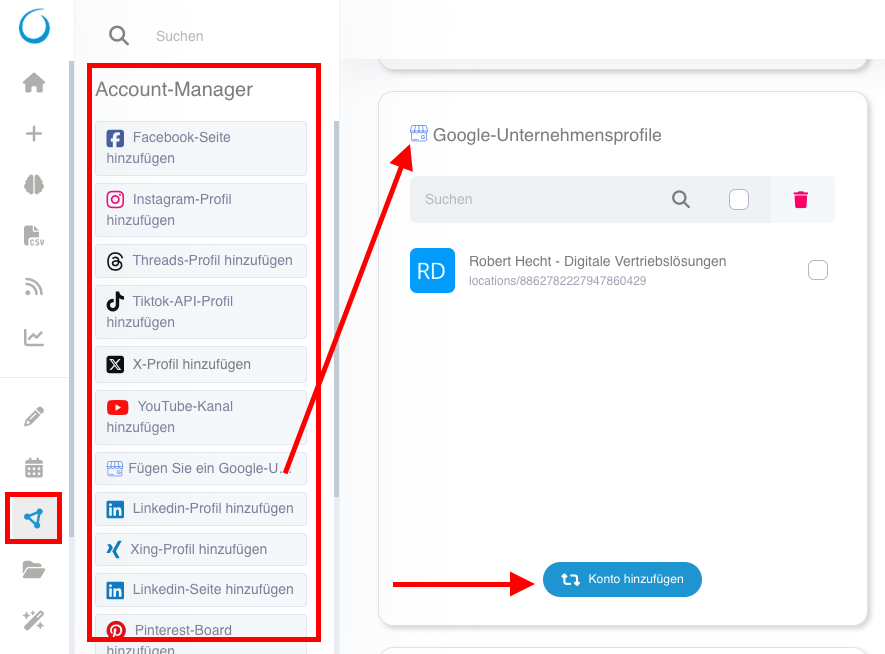
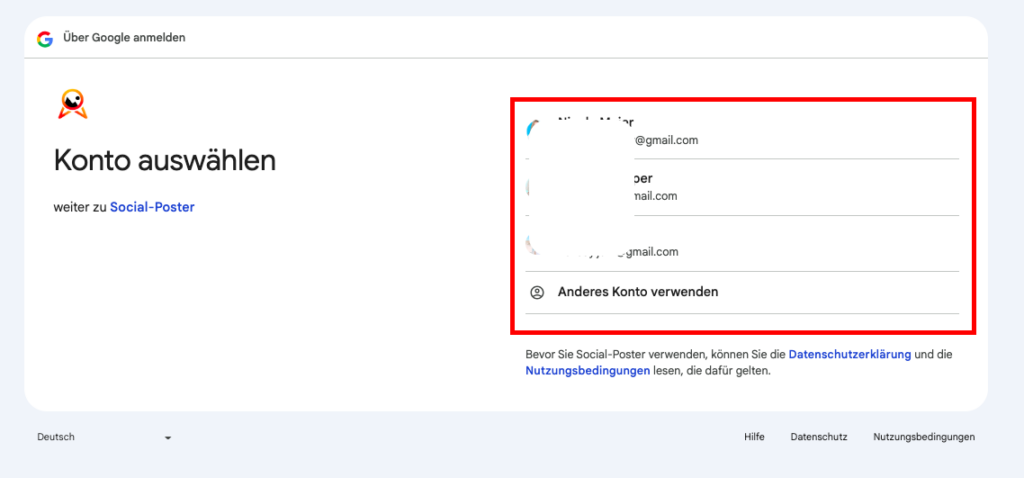
You will be redirected to Google authentication page.Log in with your Google accountIf you haven’t already, or select your Google account you want to connect directly.
Click on „Next.“
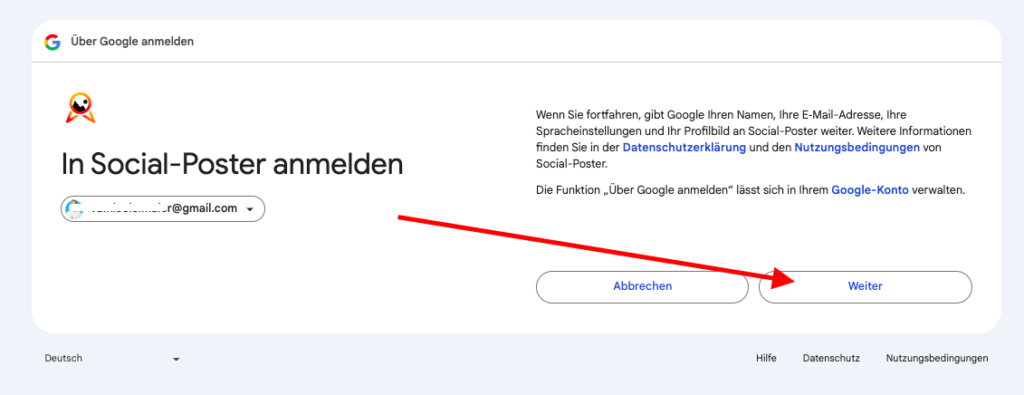
Google shows you oneAuthorization requestfor Google My Business. Confirm all necessary permissions and click „Next“ so Social Poster can post posts for you.

Choose yours.Google Company profilefrom what you want to connect and click on „Add profile“ the connection is now established!
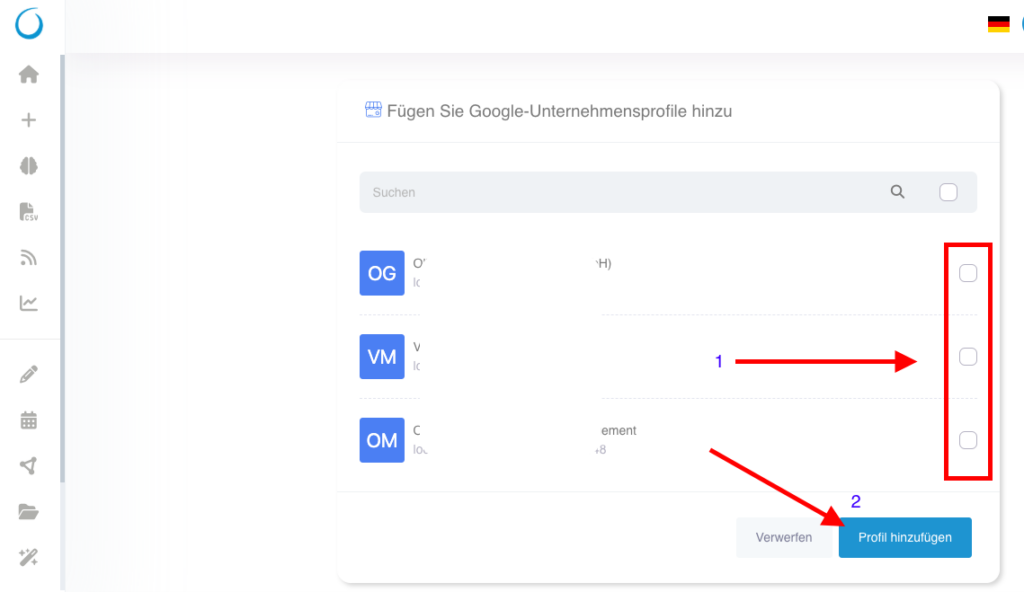
4. Possible problems & solutions
❌Error message: Google My Business account not found
➡Solution:Make sure your Google account has aVerified Google My Business profileYou have social posters thatnecessary permissionshave granted.
❌Contributions will not be published
➡Solution:Check if your Google My Business account is stillConnectedIt is and whether youAPI access rightshave correctly granted.
❌Connection is regularly disconnected
➡Solution:Google demands oneAgain confirmationafter a certain time. Log in again in to social posters and reconnect. We will send you an email if it has been separated.
❌Error message: Permissions missing
➡Solution:Check if you areAdministrator or ownerGoogle My Business profile is registered and all requestedAuthorizations grantedhave.
5. Special hints
Google My Business only allows you to post regular updates through the APIReviews or private messages are not automatable.
Posting images is possible, but videos are not supported.
The maximum character length for a post is 1,500 characters.
Hashtags are not relevant on Google My BusinessThey have no influence on the reach.
Regular connection renewal requiredGoogle uses security measures for third-party tools.
Tip:If you manage multiple Google My Business profiles, you can also connect them to social posters and manage them centrally in the dashboard.