Kategorie: Uncategorized

  • Connect YouTube channel to social posters (from premium)

    How do I connect my YouTube channel to social posters?

    Introduction

    YouTube is the world’s leading video platform and one of the best ways to build a brand, showcase products, and connect with a community. Companies, content creators and self-employed people use YouTube to expand their reach and build long-term customer loyalty. By integrating YouTube with social posters, you can efficiently schedule and upload videos automatically without having to log in manually.

    1. Benefits of connecting with social posters:

    ✔ Automatically upload videos to yourYouTube channel including shorts
    ✔ Pre-planning video uploads for a consistent content strategy
    ✔ Unified management of social media channels
    ✔ Time savings through automation

    2. Requirements

    Before you can connect your YouTube account to social posters, make sure you meet the following requirements:

    You need a YouTube channelPrivate Google accounts without a channel cannot be connected.
    You need a Social Poster Premium or VIP packageYouTube is not included in the Social Poster Business package.
    Permissions for YouTube must be authorized through the Google API.
    The YouTube account must give social posters access to content uploading.

    Note:YouTube currently only allows third-party tools to upload regular videos and shorts. Livestreams cannot be published automatically.

    3. Step-by-step instructions for connection

    How to connect your YouTube account to social posters

    Sign in to Social Poster and navigate to the Account Manager.
    Click Add YouTube channel from the account list on the left or click Add Account in the YouTube field on the right.

    You will be redirected to Google authentication page. Log in with your Google Account if you haven’t already or choose one of your Google accounts.

    Click on „Next.“

    Google will show you an authorization request for YouTube. Confirm all necessary permissions and click „Next“ so Social Poster can upload videos for you.


    Choose yours.YouTube channelfrom what you want to connect and click on „Add profile.“ The connection is now established!

    4. Possible problems & solutions

    Error message: YouTube account not found
    Solution:Make sure your Google account has aYouTube channelYou have social posters thatnecessary permissionshave granted.

    Videos are not uploaded
    Solution:Check if your YouTube account is stillConnectedIt is and whether youAPI access rightshave correctly granted.

    Connection is regularly disconnected
    Solution:Google demands oneAgain confirmationafter a certain time. Log in again in to social posters and reconnect.

    Error message: Permissions missing
    Solution:Check if you all requestedAuthorizations grantedhave your Google account through theNecessary security settingshas.

    5. Special hints

    YouTube only allows you to upload regular videos and shorts via the APILivestreams are currently not supported.
    Video uploads must meet certain formatsMake sure your videos are uploaded in MP4 format and resolution.
    Interactions such as likes, comments or subscriptions cannot be automated. .
    Regular connection renewal is requiredGoogle uses security measures for third-party tools.

    Tip:If you manage multiple YouTube channels, you can also connect them to social posters and manage them centrally in the dashboard.
  • LinkedIn mit Social Poster verbinden

    Wie verbinde ich mein LinkedIn-Profil mit Social Poster?

    Einführung

    LinkedIn ist das führende soziale Netzwerk für berufliche Kontakte, Unternehmen und B2B-Marketing. Es ermöglicht Fachleuten und Unternehmen, sich zu vernetzen, Inhalte zu teilen und potenzielle Kunden oder Partner zu erreichen. Durch die Integration von LinkedIn mit Social Poster kannst du deine Unternehmenskommunikation automatisieren und gezielt steuern.


    1. Vorteile der Verbindung mit Social Poster:

    ✔ Automatisches Posten auf deinem privaten LinkedIn-Profil und deiner LinkedIn-Unternehmensseite
    ✔ Planung von Beiträgen im Voraus
    ✔ Einheitliche Content-Strategie über mehrere Kanäle hinweg
    ✔ Zeitersparnis durch Automatisierung


    2. Voraussetzungen

    Bevor du dein LinkedIn-Konto mit Social Poster verbinden kannst, stelle sicher, dass du folgende Anforderungen erfüllst:

    Du musst Administrator des LinkedIn-Profils und deiner LinkedIn-Seite sein.
    Du musst Social Poster die notwendigen Berechtigungen erteilen.

    Hinweis: LinkedIn erlaubt aktuell keine Direktnachrichten über Drittanbieter-Tools.


    3. Schritt-für-Schritt-Anleitung zur Verbindung

    So verbindest du dein X-Konto mit Social Poster

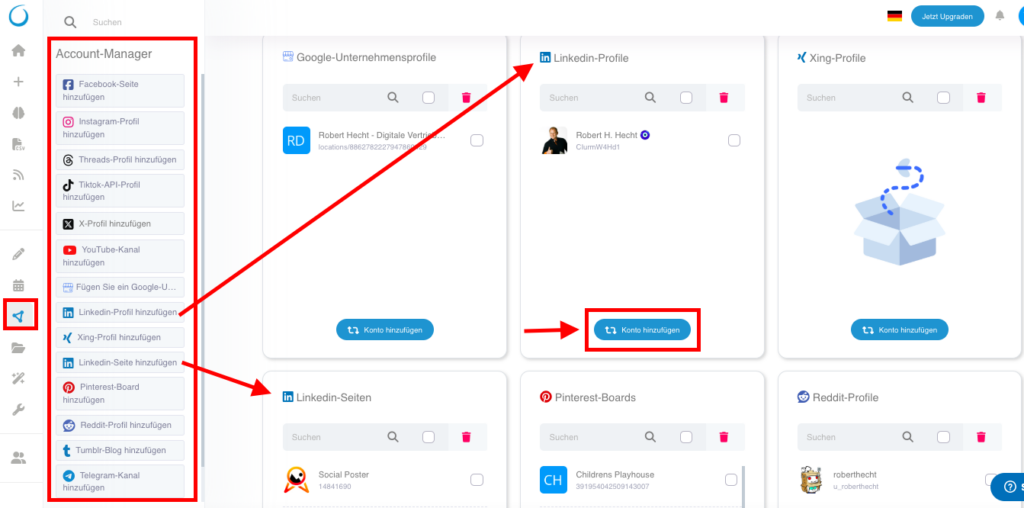
    1️⃣ Melde dich bei Social Poster an und navigiere zum Account Manager.
    2️⃣ Klicke auf „LinkedIn-Profil hinzufügen“ aus der Account-Liste links oder auf "Konto hinzufügen" im LinkedIn-Profile Feld rechts. Bei Linkedin-Seiten ist es die gleiche Vorgehensweise.

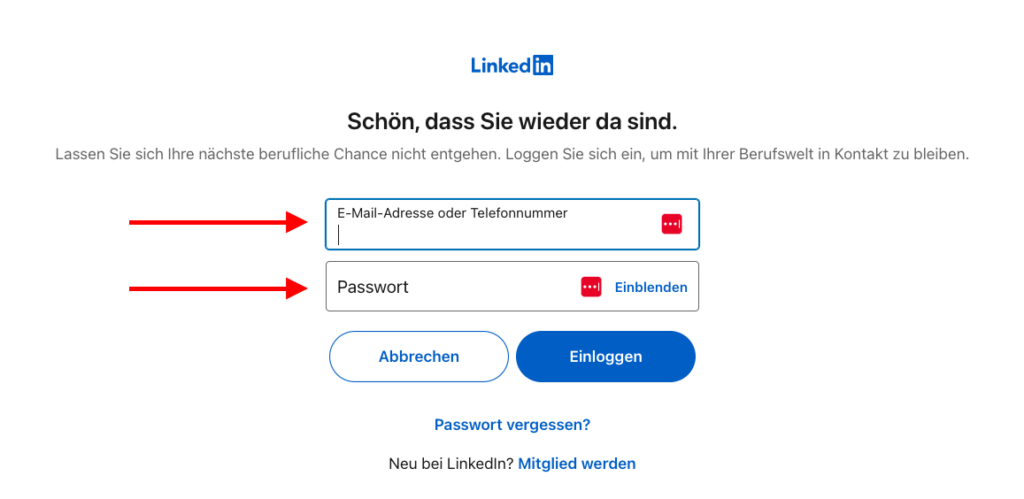
    3️⃣ Du wirst zu LinkedIn weitergeleitet. Logge dich mit deinem LinkedIn-Konto ein, falls du das noch nicht getan hast.


    4️⃣ LinkedIn zeigt dir eine Berechtigungsanfrage. Bestätige alle erforderlichen Berechtigungen, damit Social Poster Beiträge für dich veröffentlichen kann.

    5️⃣ Wähle das Linkedin-Profil oder die LinkedIn-Unternehmensseite aus, die du mit Social Poster verbinden möchtest. Klicke auf „Bestätigen“ – die Verbindung ist nun hergestellt!


    4. Mögliche Probleme & Lösungen

    Fehlermeldung: „Unternehmensseite nicht gefunden“
    Lösung: Stelle sicher, dass du Administrator der Unternehmensseite bist und Social Poster alle notwendigen Berechtigungen erteilt wurden.

    Beiträge werden nicht veröffentlicht
    Lösung: Überprüfe, ob dein LinkedIn-Konto noch verbunden ist und ob du die API-Zugriffsrechte korrekt erteilt hast.

    Verbindung wird regelmäßig getrennt
    Lösung: LinkedIn verlangt eine erneute Bestätigung nach einer bestimmten Zeit. Melde dich erneut in Social Poster an und stelle die Verbindung wieder her. Wir schicken dir eine E-Mail sollte die Verbindung mal getrennt werden und es steht in deinem Account-Manager.

    Fehlermeldung: „Berechtigungen fehlen“
    Lösung: Überprüfe, ob du Admin-Rechte für die verknüpfte LinkedIn-Seite hast und alle angeforderten Berechtigungen erteilt wurden.


    5. Spezielle Hinweise

    Interaktionen wie Likes, Kommentare oder Direktnachrichten können nicht automatisiert werden.
    Externe Links in LinkedIn-Posts haben oft eine geringere Reichweite – verwende sie sparsam oder nutze eine Kommentarstrategie.
    Regelmäßige Verbindungserneuerung erforderlich – LinkedIn setzt Sicherheitsmaßnahmen für Drittanbieter-Tools ein.

    Tipp: Falls du mehrere LinkedIn-Unternehmensseiten verwaltest, kannst du diese ebenfalls mit Social Poster verbinden und im Dashboard verwalten.

  • Bitly mit Social Poster verbinden

    Wie verbinde ich Bitly mit Social Poster?

    Einführung

    Bitly ist ein beliebter URL-Shortener, der lange Links verkürzt und Tracking-Analysen für geteilte Links bereitstellt. Durch die Integration von Bitly mit Social Poster kannst du automatisch verkürzte Links in deinen Beiträgen verwenden und deren Leistung analysieren.


    1. Vorteile der Verbindung mit Social Poster:

    ✔ Automatische Verkürzung von Links für eine professionellere Darstellung
    ✔ Übersichtliche Tracking-Statistiken für deine geteilten Links
    ✔ Einheitliche Verwaltung deiner Social-Media-Kanäle
    ✔ Zeitersparnis durch Automatisierung


    2. Voraussetzungen

    Bevor du dein Bitly-Konto mit Social Poster verbinden kannst, stelle sicher, dass folgende Anforderungen erfüllt sind:

    Du benötigst ein aktives Bitly-Konto – Falls du noch keines hast, kannst du es während des Verbindungsprozesses erstellen.
    Die Berechtigungen für Bitly müssen über die API autorisiert werden.
    Du musst in Social Poster als Administrator oder mit ausreichenden Rechten angemeldet sein, um Integrationen vorzunehmen.
    Dein Browser sollte Pop-ups zulassen, da die Bitly-Anmeldung in einem separaten Fenster erfolgt.


    3. Schritt-für-Schritt-Anleitung zur Verbindung

    So verbindest du dein Bitly-Konto mit Social Poster

    1️⃣ Melde dich in Social Poster an und klicke rechts oben auf dein Profil, dann auf Einstellungen.

    2️⃣ Scrolle zur Rubrik „Kurzlink“ und klicke auf den Button „Verbinden“ unter dem Bitly-Logo.

    3️⃣ Melde dich bei Bitly an – entweder über Google, Apple oder mit deinen Bitly-Anmeldedaten. Falls du noch kein Bitly-Konto hast, kannst du an dieser Stelle eines erstellen.

    4️⃣ Bitly fordert eine Erlaubnis zur Verbindung mit Social Poster an. Klicke auf „Erlaubnis erteilen“.

    5️⃣ Nach erfolgreicher Verbindung wirst du automatisch zur Seite „Beitrag erstellen“ in Social Poster weitergeleitet. Der Bitly-Link ist nun unterhalb von „URL-Shortener“ hinterlegt.  


    4. Mögliche Probleme & Lösungen

    Fehlermeldung: „Bitly-Konto nicht gefunden“
    Lösung: Stelle sicher, dass du ein aktives Bitly-Konto hast und Social Poster alle notwendigen Berechtigungen erteilt wurden.

    Verbindung schlägt fehl
    Lösung: Überprüfe, ob dein Bitly-Konto noch verbunden ist und ob die API-Zugriffsrechte korrekt erteilt wurden.


    5. Spezielle Hinweise

    Bitly verkürzt automatisch alle Links, die du in Social Poster einfügst, sofern die Verbindung aktiv ist und du im Post Bitly ausgewählt hast.
    Du kannst in Social Poster einstellen, ob du die Bitly-Verkürzung für einzelne Beiträge nutzen möchtest oder nicht.
    Verkürzte Links behalten ihre Tracking-Funktion und können in Bitly analysiert werden.

  • Analytik

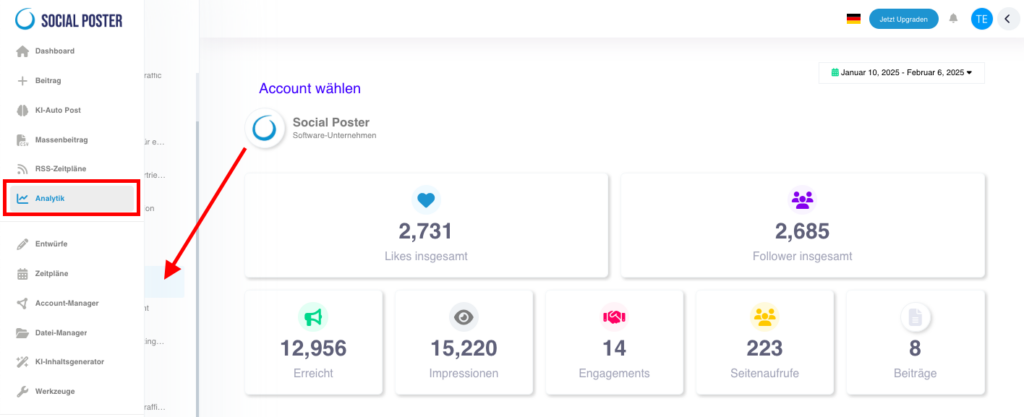
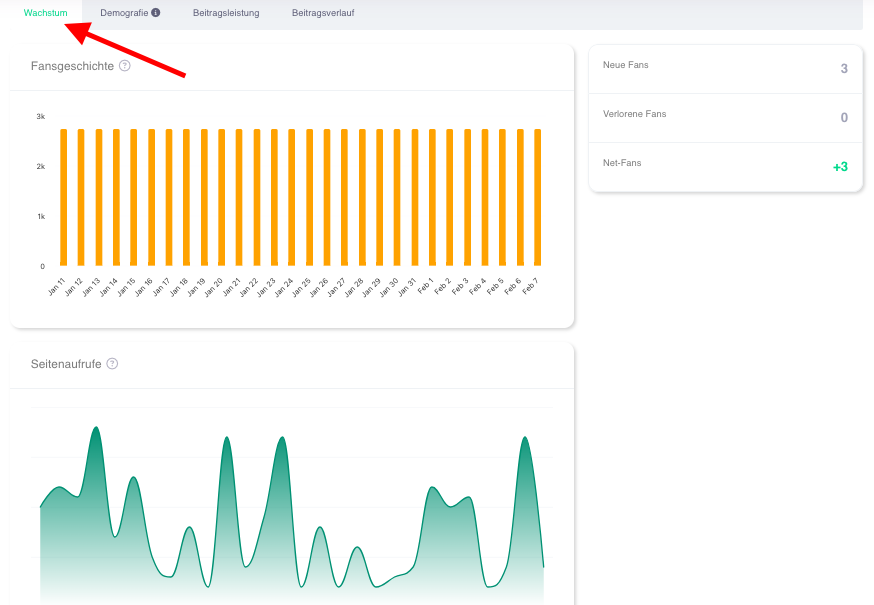
    Der Bereich „Analytik“ bietet dir tiefgehende Einblicke in die Leistung deiner Social Media
    Beiträge und Kanäle. Mit diesen Daten kannst du deine Strategien optimieren, erfolgreiche
    Inhalte identifizieren und die Interaktion mit deiner Zielgruppe verbessern.

    6.1 Was ist der Analytik-Bereich?

    • Definition: Eine zentrale Plattform, die dir alle relevanten Statistiken und Metriken zu deinen Social Media Konten und Beiträgen bereitstellt.
    • Hauptvorteile:
      • Transparenz: Verstehe, welche Inhalte funktionieren und warum.
      • Optimierung: Erhalte Daten, um deine Kampagnen gezielt zu verbessern.
      • Erfolgsmessung: Verfolge die Ergebnisse deiner Social Media Strategie in
        Echtzeit.


    6.2 Welche Plattformen werden unterstützt?
    • Der Analytik-Bereich bietet derzeit detaillierte Auswertungen für:
      • Facebook
      • Instagram
      • X (ehemals Twitter)
    • Weitere Plattformen werden noch hinzugefügt.

    6.3 Welche Daten sind verfügbar?


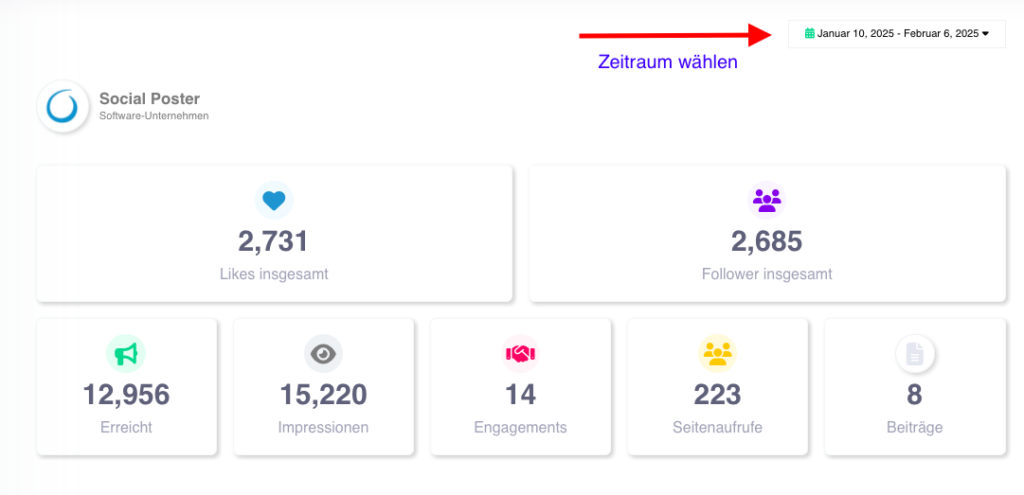
    A. Reichweite und Engagement
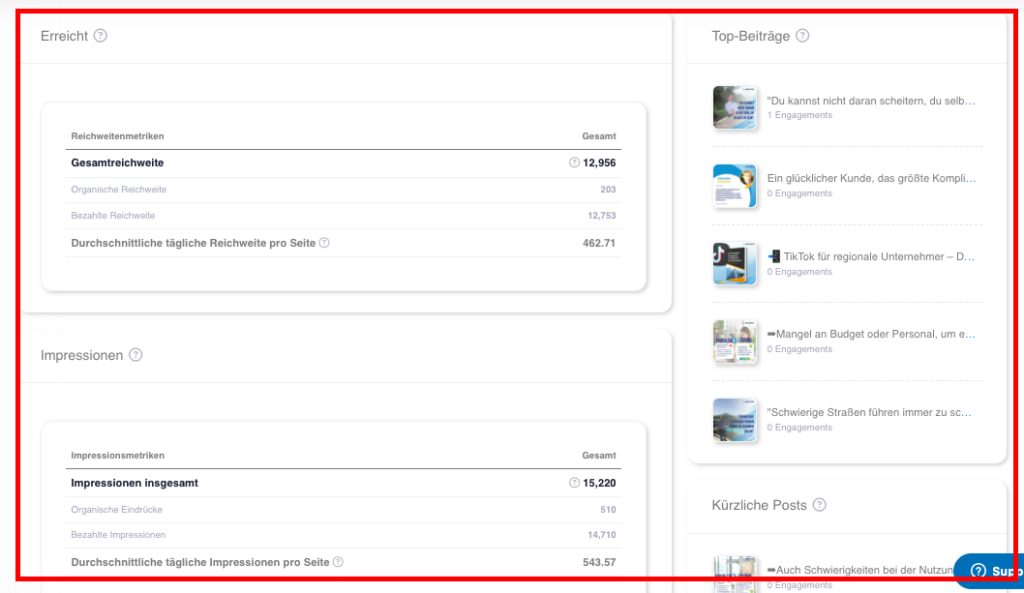
    • Reichweite:
      • Gesamtreichweite: Anzahl der Personen, die deine Inhalte gesehen haben
      • Organische Reichweite: Beiträge, die ohne bezahlte Werbung gesehen wurden.
      • Bezahlte Reichweite: Beiträge, die durch Anzeigenimpressionen erreicht wurden.
      • Nutzen: Verstehe, wie viele Personen du tatsächlich erreichst und welche
        Kampagnen effektiv sind.
    • Engagement:
      • Interaktionen: Likes, Kommentare, Shares und andere Reaktionen auf deine Beiträge.
      • Engagement-Rate: Prozentsatz der Follower, die mit deinen Inhalten interagieren.
      • Nutzen: Messen, wie aktiv deine Zielgruppe mit deinen Inhalten interagiert.


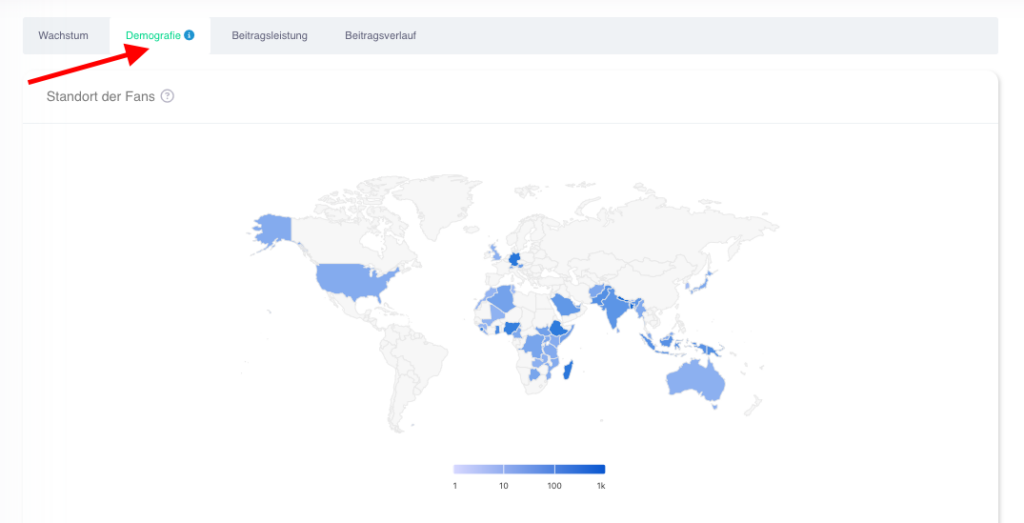
    B. Demografie
    • Geografische Daten:
      • Herkunft der Follower (Länder und Städte).
      • Darstellung auf einer Weltkarte oder in Diagrammen.
    • Sprachverteilung:
      • Hauptsprachen deiner Zielgruppe.
      • Nutzen: Erstelle gezielte Inhalte für bestimmte Regionen oder Sprachen.


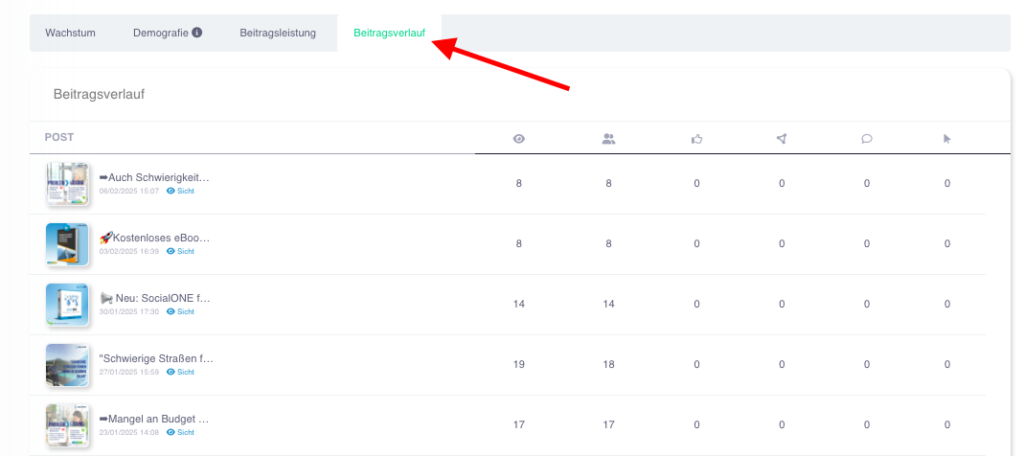
    C. Beitragsleistung
    • Top-Beiträge:
      • Identifiziere die Beiträge mit der besten Performance.
      • Metriken wie Impressionen, Reichweite, Likes, Kommentare und Shares.
      • Nutzen: Repliziere erfolgreiche Inhalte, um deine Reichweite zu maximieren.
    • Kürzlich gepostete Beiträge:
      • Übersicht über die neuesten Beiträge mit deren Performance-Daten.

    D. Follower-Wachstum

    • Neue und verlorene Follower:
      • Überblick über die Anzahl neu gewonnener und verlorener Follower in einem
        bestimmten Zeitraum.
    • Fan-Historie:
      • Zeitliche Entwicklung deiner Followerzahl.
      • Nutzen: Erkenne, welche Maßnahmen das Follower-Wachstum beeinflussen.


    6.4 Visualisierungen und Berichte

    • Grafische Darstellungen:
      • Balkendiagramme, Tortendiagramme und Liniengrafiken für einfache und verständliche Analysen.


    6.5 Häufige Anwendungsfälle

    • Leistungsanalyse:
      • Finde heraus, welche Inhalte und Plattformen den größten Erfolg bringen.
    • Zielgruppen-Insights:
      • Analysiere, woher deine Follower kommen und was sie interessiert.
    • Kampagnenbewertung:
      • Überprüfe die Effektivität deiner Beiträge.
    • Content-Optimierung:
      • Verwende Daten aus der Beitragsanalyse, um zukünftige Inhalte gezielt zu erstellen.


    6.6 Vorteile der Analytik-Funktion

    • Effizienz: Analysiere alle wichtigen Metriken an einem Ort.
    • Strategische Planung: Nutze Daten, um deine Social Media Strategie datenbasiert anzupassen.
    • ROI-Messung: Beurteile den Erfolg deiner Investitionen in Social-Media-Marketing.
    • Zielgruppenverständnis: Verstehe, wer deine Inhalte konsumiert und warum.


    6.7 Tipps zur optimalen Nutzung

    • Regelmäßige Überprüfung:
      • Kontrolliere wöchentlich die wichtigsten Metriken, um Trends frühzeitig zu erkennen.
    • Vergleiche Plattformen:
      • Analysiere, welche Plattform für dein Publikum am besten funktioniert.
    • Teste und optimiere:
      • Experimentiere mit verschiedenen Inhalten und analysiere deren
        Performance, um deine Strategie anzupassen.


    6.8 Häufige Fragen (FAQ)

    • „Wie oft werden die Daten aktualisiert?“
      • Die Daten werden in der Regel minütlich synchronisiert, abhängig von der
        jeweiligen Plattform.
    • „Kann ich historische Daten sehen?“
      • Ja, du kannst Daten für einen bestimmten Zeitraum abrufen, z. B. die letzten 30 Tage oder das gesamte Jahr, je nach Plattform.
    • „Welche Plattform hat die besten Metriken?“
      • Die Tiefe der Metriken hängt von der Plattform ab. Facebook und Instagram bieten in der Regel detailliertere Daten als andere Plattformen.


    6.9 Praktische Beispiele

    • Ein E-Commerce-Shop: Analysiert die besten Werbekampagnen, um festzustellen,
      welche Produkte die meiste Aufmerksamkeit erhalten.
    • Eine Agentur: Erstellt monatliche Berichte für Kunden, um den Erfolg ihrer Social
      Media Aktivitäten darzustellen.
    • Ein Content Creator: Verwendet die Top-Beitragsanalyse, um herauszufinden,
      welche Art von Inhalten bei seiner Zielgruppe am besten ankommt.


    Der Bereich Analytik ist ein unverzichtbares Werkzeug für datengetriebenes Social Media
    Marketing. Mit seinen umfassenden Metriken und benutzerfreundlichen Visualisierungen ermöglicht er dir, fundierte Entscheidungen zu treffen und den Erfolg deiner Social Media
    Strategie messbar zu machen.


      •  
  • Connect threads to social posters (from premium)

    How do I connect my threads profile to social posters?

    Introduction

    Threads is a social media platform from Meta that serves as a text-based extension of Instagram. It allows users to share short, interactive posts and interact with their community in real time. By integrating threads with social posters, you can efficiently plan and publish content automatically.

    1. Benefits of connecting with social posters:

    ✔ Automatic posting on yourThreads profile
    ✔ Pre-planning posts for a consistent content strategy
    ✔ Unified management of social media channels
    ✔ Time savings through automation

    2. Requirements

    Before you can connect your threads account to social posters, make sure the following requirements are met:

    Threads is linked to your Instagram accountYou need an Instagram profile to use threads.
    You have a public or private thread profileSocial Poster only supports public profiles for automated posts.
    The permissions for threads must be authorized via Instagram.
    You need a Social Poster Premium or VIP packageThe Social Poster Business package does not include threads.

    Note:Threads is a comparatively new platform, and Meta can make API changes that can impact third-party tools.

    3. Step-by-step instructions for connection

    How to connect your threads account to social poster

    Sign in to Social Poster and navigate to the Account Manager.
    Click Add Threads Profile from the account list on the left or click Add Account in the Threads Profile field on the right.

    You will be redirected to the logger. If you haven’t already, log in with your Instagram account and click Sign in.“

    Instagram shows you a permission request for threads.Confirm all necessary permissions,So that social posters can post for you.

    Choose yours.Threads profilewhat you want to connect.

    „Click onAdd profileThe connection is now established!

    4. Possible problems & solutions

    Error message: Threads account not found
    Solution:Make sure your threads account is linked to Instagram and you have given social posters the necessary permissions.

    Contributions will not be published
    Solution:Check that your threads account is still connected and if you have granted API access rights correctly. Check under„Schedules“ & „Unpublished posts,“Your threads posts because of exceeding theCharacter boundaryDid not go out.

    Connection is regularly disconnected
    Solution:Meta requires re-confirmation after a certain time. Log in again in to social posters and reconnect.

    Error message: Permissions missing
    Solution:Check that you’ve granted all requested permissions and your Instagram account is correctly linked to threads.

    5. Special hints

    Threads posts are managed through Instagram APITherefore, there may occasional restrictions or changes in availability.
    The maximum character length per thread is 500 charactersLonger texts cannot be published.
    Interactions such as likes, comments or direct messagescannot be automated.
    Regular connection renewal requiredMeta uses security measures for third-party tools.

    Tip:If you manage multiple threads profiles, you can also connect them to social posters and manage them in the dashboard.

  • Connect LinkedIn to social posters

    How do I connect my LinkedIn profile to social posters?

    Introduction

    LinkedIn is the leading social network for professional contacts, businesses and B2B marketing. It enables professionals and businesses to connect, share content, and reach potential customers or partners. By integrating LinkedIn with social posters, you can automate and control your corporate communications in a targeted manner.


    1. Benefits of connecting with social posters:

    ✔ Automatically post to your private LinkedIn profile and LinkedIn business page
    ✔ Planning of contributions in advance
    ✔ Unified content strategy across multiple channels
    ✔ Time savings through automation


    2. Requirements

    Before you can connect your LinkedIn account to social posters, make sure you meet the following requirements:

    You must be administrator of LinkedIn profile and LinkedIn page.
    You need to give social posters the necessary permissions.

    Note:LinkedIn currently does not allow direct messaging through third-party tools.

    3. Step-by-step instructions for connection

    How to connect your X account to social poster

    Sign in to Social Poster and navigate to the Account Manager.
    Click Add LinkedIn profile from the account list on the left or click Add Account in theLinkedIn profilesField right. AtLinkedin pagesIt is the same procedure.

    You will be redirected to LinkedIn.Log in with your LinkedIn account,If you haven’t done that yet.

    LinkedIn will show you an authorization request.Confirm all necessary permissions,So that social posters can post for you.

    Select the Linkedin profile or theLinkedIn Company pageWhat you want to connect to social posters. Click onConfirmationThe connection is now established!

    4. Possible problems & solutions

    Error message: Company page not found
    Solution:Make sure you are administrator of the company page and social posters have been granted all necessary permissions.

    Contributions will not be published
    Solution:Check that your LinkedIn account is still connected and if you have granted API access rights correctly.

    Connection is regularly disconnected
    Solution:LinkedIn requires re-confirmation after a certain period of time. Log in again in to social posters and reconnect. We will send you an email if the connection is disconnected and it will be in your account manager.

    Error message: Permissions missing
    Solution:Check that you have admin permissions for the linked LinkedIn page and all requested permissions have been granted.

    5. Special hints

    Interactions such as likes, comments or direct messagescannot be automated.
    External links in LinkedIn postsOften have a shorter reach – use them sparingly or use a comment strategy.
    Regular connection renewal requiredLinkedIn uses security measures for third-party tools.

    Tip:If you manage multiple LinkedIn corporate pages, you can also connect them to social posters and manage them in the dashboard.

  • YouTube-Kanal mit Social Poster verbinden (ab Premium)

    Wie verbinde ich meinen YouTube-Kanal mit Social Poster?

    Einführung

    YouTube ist die weltweit führende Videoplattform und eine der besten Möglichkeiten, um eine Marke aufzubauen, Produkte zu präsentieren und mit einer Community in Kontakt zu treten. Unternehmen, Content Creator und Selbstständige nutzen YouTube, um ihre Reichweite zu vergrößern und langfristige Kundenbindungen aufzubauen. Durch die Integration von YouTube mit Social Poster kannst du Videos effizient planen und automatisch hochladen, ohne dich manuell einloggen zu müssen.


    1. Vorteile der Verbindung mit Social Poster:

    ✔ Automatisches Hochladen von Videos auf deinen YouTube-Kanal inkl. Shorts
    ✔ Vorausplanung von Videouploads für eine konsistente Content-Strategie
    ✔ Einheitliche Verwaltung deiner Social-Media-Kanäle
    ✔ Zeitersparnis durch Automatisierung


    2. Voraussetzungen

    Bevor du dein YouTube-Konto mit Social Poster verbinden kannst, stelle sicher, dass folgende Anforderungen erfüllt sind:

    Du benötigst einen YouTube-Kanal – Private Google-Konten ohne Kanal können nicht verbunden werden.
    Du benötigst ein Social Poster Premium oder VIP-Paket – im Social Poster Business-Paket ist YouTube nicht enthalten.
    Die Berechtigungen für YouTube müssen über die Google API autorisiert werden.
    Das YouTube-Konto muss Social Poster Zugriff auf das Hochladen von Inhalten gewähren.

    Hinweis: YouTube erlaubt Drittanbieter-Tools aktuell nur das Hochladen von regulären Videos und Shorts. Livestreams können nicht automatisiert veröffentlicht werden.


    3. Schritt-für-Schritt-Anleitung zur Verbindung

    So verbindest du dein YouTube-Konto mit Social Poster

    1️⃣ Melde dich bei Social Poster an und navigiere zum Account Manager.
    2️⃣ Klicke auf „YouTube-Kanal hinzufügen“ aus der Account-Liste links oder auf "Konto hinzufügen" im YouTube Feld rechts.

    3️⃣ Du wirst zur Google-Authentifizierungsseite weitergeleitet. Logge dich mit deinem Google-Konto ein, falls du das noch nicht getan hast oder wähle eines deiner Google-Konten.

    4️⃣ Klicke auf "Weiter".

    5️⃣Google zeigt dir eine Berechtigungsanfrage für YouTube. Bestätige alle erforderlichen Berechtigungen und klicke auf "Weiter", damit Social Poster Videos für dich hochladen kann.


    6️⃣ Wähle deinen YouTube-Kanal aus, den du verbinden möchtest und klicke auf "Profil hinzufügen". Die Verbindung ist nun hergestellt!


    4. Mögliche Probleme & Lösungen

    Fehlermeldung: „YouTube-Konto nicht gefunden“
    Lösung: Stelle sicher, dass dein Google-Konto mit einem YouTube-Kanal verknüpft ist und du Social Poster die notwendigen Berechtigungen erteilt hast.

    Videos werden nicht hochgeladen
    Lösung: Überprüfe, ob dein YouTube-Konto noch verbunden ist und ob du die API-Zugriffsrechte korrekt erteilt hast.

    Verbindung wird regelmäßig getrennt
    Lösung: Google verlangt eine erneute Bestätigung nach einer bestimmten Zeit. Melde dich erneut in Social Poster an und stelle die Verbindung wieder her.

    Fehlermeldung: „Berechtigungen fehlen“
    Lösung: Überprüfe, ob du alle angeforderten Berechtigungen erteilt hast und dein Google-Konto über die notwendige Sicherheitseinstellungen verfügt.


    5. Spezielle Hinweise

    YouTube erlaubt nur den Upload von normalen Videos und Shorts über die API – Livestreams sind derzeit nicht unterstützt.
    Video-Uploads müssen bestimmte Formatvorgaben erfüllen – Stelle sicher, dass deine Videos im MP4-Format und in einer geeigneten Auflösung hochgeladen werden.
    Interaktionen wie Likes, Kommentare oder Abonnements können nicht automatisiert werden.
    Eine regelmäßige Verbindungserneuerung ist erforderlich – Google setzt Sicherheitsmaßnahmen für Drittanbieter-Tools ein.

    Tipp: Falls du mehrere YouTube-Kanäle verwaltest, kannst du diese ebenfalls mit Social Poster verbinden und zentral im Dashboard verwalten.

  • Analytics

    Analytics section gives you in-depth insights into the performance of your social media
    Contributions and channels. With this data you can optimize your strategies, successful
    Identify content and improve interaction with your target audience.

    6.1 What is the analytics area?

    • Definition:A central platform that provides you with all relevant statistics and metrics about your social media accounts and posts.
    • Main benefits:
      • Transparency:Understand what content works and why.
      • Optimization:Get data to improve your campaigns specifically.
      • Measurement:Track the results of your social media strategy in
        Real-time.

    6.2 Which platforms are supported?

    • The analytics section currently offers detailed evaluations for:
      • Facebook
      • Instagram
      • X (formerly Twitter)
    • Other platforms will be added.

    6.3 What data is available?

    A. Reach and commitment

    • Range:
      • Total reach: Number of people who have seen your content
      • Organic reach: posts seen without paid advertising.
      • Paid reach: Posts achieved through ad impressions.
      • Benefits:Understand how many people you actually reach and which
        Campaigns are effective.
    • Commitment:
      • Interactions: likes, comments, shares and other responses to your posts.
      • Engagement rate: Percentage of followers who interact with your content.
      • Benefits:Measure how actively your audience interacts with your content.

    B. Demographics

    • Geographical data:
      • Origin of followers (country and cities).
      • Representation on a world map or in diagrams.
    • Language distribution:
      • Target audience’s main languages.
      • Benefits:Create targeted content for specific regions or languages.

    C. Contribution

    • Top-contributions:
      • Identify the posts with the best performance.
      • Metrics such as impressions, reach, likes, comments and shares.
      • Benefits:Replicate successful content to maximize your reach.
    • Recently posted posts:
      • Overview of the latest posts with their performance data.

    D. Follower growth

    • New and lost followers:
      • Overview of the number of newly gained and lost followers in one
        certain period.
    • Fan history:
      • Time development of your followers.
      • Benefits:See what measures affect follower growth.

    6.4 Visualizations and reports

    • Graphical representations:
      • Bar charts, cake charts and line graphs for easy and understandable analysis.

    6.5 Common use cases

    • Performance analysis:
      • Find out which content and platforms bring the greatest success.
    • Target-insights:
      • Analyze where your followers come from and what interests them.
    • Campaign evaluation:
      • Check the effectiveness of your posts.
    • Content optimization:
      • Use data from post analysis to create future content in a targeted manner.

    6.6 Benefits of analytics function

    • Efficiency:Analyze all key metrics in one place.
    • Strategic planning:Use data to customize your social media strategy data-based.
    • ROI measurement:Assess the success of your investments in social media marketing.
    • Target group understanding:Understand who consumes your content and why.

    6.7 Tips for optimal use

    • Regular review:
      • Check key metrics weekly to identify trends early on.
    • Compare platforms:
      • Analyze which platform works best for your audience.
    • Test and optimize:
      • Experiment with different content and analyze their
        Performance to customize your strategy.

    6.8 Frequently Asked Questions

    • How often is the data updated?
      • The data is usually synchronized every minute, depending on the
        respective platform.
    • Can I see historical data?
      • Yes, you can retrieve data for a certain period of time, e.g. B. the last 30 days or the whole year, depending on the platform.
    • Which platform has the best metrics?
      • The depth of the metrics depends on the platform. Facebook and Instagram usually offer more detailed data than other platforms.

    6.9 Practical examples

    • E-commerce shop:Analyzes the best advertising campaigns to determine
      Which products get the most attention.
    • An agency:Creates monthly reports for customers to improve the success of their social
      Present media activities.
    • A content creator:Uses top contribution analysis to find out
      What kind of content is best received by your target audience.

    Analytics is an indispensable tool for data-driven social media
    marketing. With its comprehensive metrics and easy-to-use visualizations, it enables you to make informed decisions and improve your social media success.
    To make strategy measurable.

  • Connect Bitly to social posters

    How do I connect Bitly to social posters?

    Introduction

    Bitly is a popular URL shortser that shortens long links and provides tracking analytics for shared links. By integrating Bitly with social posters, you can automatically use shortened links in your posts and analyze their performance.

    1. Benefits of connecting with social posters:

    ✔ Automatic shortening of links for a more professional presentation
    ✔ Clear tracking statistics for your shared links
    ✔ Unified management of social media channels
    ✔ Time savings through automation

    2. Requirements

    Before you can connect your Bitly account to social poster, make sure the following requirements are met:

    You need an active Bitly accountIf you don’t have one yet, you can create it during the connection process.
    The permissions for Bitly must be authorized through the API. .
    You must be logged into social posters as an administrator or with sufficient rights to make integrations. .
    Your browser should allow pop-upsSince the bitly login takes place in a separate window.

    3. Step-by-step instructions for connection

    How to connect your Bitly account to social poster

    Sign in to social posters and clickTop right of your profile, then toSettings. .

    Scroll to sectionShort linkand click on the buttonConnectingunder theBitly logo. .

    Sign in to Bitly either viaGoogle, AppleOr with yoursBitly credentials. . If you don’t have a Bitly account yet, you can create one at this point.

    Bitly calls for onePermissionTo connect with social posters. Click onGive permission. .

    After successful connection, you will automatically become to the pageCreating a postRedirected to social posters. TheBitly-Linkis now below fromURL shortsdeposited.


    4. Possible problems & solutions

    Error message: Bitly account not found
    Solution:Make sure you have an activeBitly accountSocial posters are allnecessary permissionswere granted.

    Connection fails
    Solution:Check if your Bitly account is stillConnectedis and whether theyAPI access rightswere correctly granted.

    5. Special hints

    Bitly automatically shortens all links you insert into social posters if the connection is active and you selected Bitly in the post.
    You can set in social posters whether or not you want to use the Bitly shortening for individual posts.
    Shortened links retain their tracking function and can be analyzed in Bitly.

  • TikTok mit Social Poster verbinden (ab Premium)

    Wie verbinde ich mein TikTok-Profil mit Social Poster?

    Einführung

    TikTok ist eine der am schnellsten wachsenden Social-Media-Plattformen und bietet Unternehmen, Content Creators und Marken die Möglichkeit, durch kreative Kurzvideos eine breite Zielgruppe zu erreichen. Durch die Integration von TikTok mit Social Poster kannst du deine Inhalte effizient vorausplanen und automatisiert veröffentlichen, ohne dich jedes Mal manuell anmelden zu müssen.


    1. Vorteile der Verbindung mit Social Poster:

    ✔ Automatisches Posten von Videos auf deinem TikTok-Business-Konto
    ✔ Vorausplanung von Beiträgen für eine konsistente Content-Strategie
    ✔ Einheitliche Verwaltung deiner Social-Media-Kanäle
    ✔ Zeitersparnis durch Automatisierung


    2. Voraussetzungen

    Bevor du dein TikTok-Konto mit Social Poster verbinden kannst, stelle sicher, dass folgende Anforderungen erfüllt sind:

    Du benötigst ein TikTok-Business-Konto – Private Konten können nicht verbunden werden.
    Du benötigst ein Social Poster Premium oder VIP-Paket – im Social Poster Business-Paket ist YouTube nicht enthalten.
    Die Berechtigungen für TikTok müssen über die TikTok-Entwicklerplattform autorisiert werden.
    Dein TikTok-Konto muss mit Social Poster über die API verknüpft werden.

    Hinweis: TikTok erlaubt Drittanbieter-Tools aktuell nur das Posten von regulären Feed-Videos. Livestreams und Story-Posts können nicht automatisiert veröffentlicht werden.


    3. Schritt-für-Schritt-Anleitung zur Verbindung

    So verbindest du dein TikTok-Konto mit Social Poster

    1️⃣ Melde dich bei Social Poster an und navigiere zum Account Manager.
    2️⃣ Klicke auf „TikTok-API-Profil hinzufügen“ in der linken Account-Liste oder auf "Konto hinzufügen" im TikTok API Profiles Feld rechts.

    3️⃣ Du wirst zur TikTok-Entwicklerplattform weitergeleitet. Logge dich mit deinem TikTok-Konto ein, falls du das noch nicht getan hast.

    4️⃣ TikTok zeigt dir eine Berechtigungsanfrage. Bestätige alle erforderlichen Berechtigungen, damit Social Poster Videos für dich veröffentlichen kann.

    5️⃣ Wähle dein TikTok-Business-Konto aus, das du verbinden möchtest.

    6️⃣ Klicke auf „Profil hinzufügen“ – die Verbindung ist nun hergestellt!


    4. Mögliche Probleme & Lösungen

    Fehlermeldung: „TikTok-Konto nicht gefunden“
    Lösung: Stelle sicher, dass du ein TikTok-Business-Konto hast und Social Poster alle notwendigen Berechtigungen erteilt wurden.

    Videos werden nicht veröffentlicht
    Lösung: Überprüfe, ob dein TikTok-Konto noch verbunden ist und ob du die API-Zugriffsrechte korrekt erteilt hast.

    Verbindung wird regelmäßig getrennt
    Lösung: TikTok verlangt eine erneute Bestätigung nach einer bestimmten Zeit. Melde dich erneut in Social Poster an und stelle die Verbindung wieder her. Wir schicken dir eine E-Mail sollte das passieren.

    Fehlermeldung: „Berechtigungen fehlen“
    Lösung: Überprüfe, ob du alle angeforderten Berechtigungen erteilt hast und dein Konto korrekt als Business-Konto eingerichtet ist.


    5. Spezielle Hinweise

    Nur TikTok-Business-Konten können verbunden werden – private oder Creator-Konten werden nicht unterstützt.
    Automatisierte Interaktionen wie Likes, Kommentare oder Direktnachrichten sind nicht möglich.
    Regelmäßige Verbindungserneuerung erforderlich – TikTok setzt Sicherheitsmaßnahmen für Drittanbieter-Tools ein.

    Tipp: Falls du mehrere TikTok-Konten verwaltest, kannst du diese ebenfalls mit Social Poster verbinden und im Dashboard verwalten.