Connect Pinterest to social posters
How do I connect my Pinterest profile to social posters?
Introduction
Pinterest is a visually oriented platform that’s great for businesses, bloggers, and creatives to share inspiration and showcase products or services. Users save so-called pins on their bulletin boards to organize content and access it later. By integrating Pinterest with social posters, you can plan and publish your Pins automatically without having to log in manually each time.
1. Benefits of connecting with social posters:
✔ Automatically posting pins on yourPinterest boards
✔ Pre-planning content for a consistent Pinterest strategy
✔ Unified management of social media channels
✔ Time savings through automation
2. Requirements
Before you can connect your Pinterest account to social posters, make sure you meet the following requirements:
✅You need your own bulletboardYou can connect your boards with social posters.
✅Pinterest permissions for Pinterest must be authorized through the Pinterest API –This happens by connecting social posters to Pinterest.
✅The Pinterest account must give social posters access to publishing pins.
Note:Pinterest currently only provides support for standard pins through third-party tools. Features such as Idea Pins, carousel pins or videos cannot be published automatically.
3. Step-by-step instructions for connection
How to connect your Pinterest account to social posters
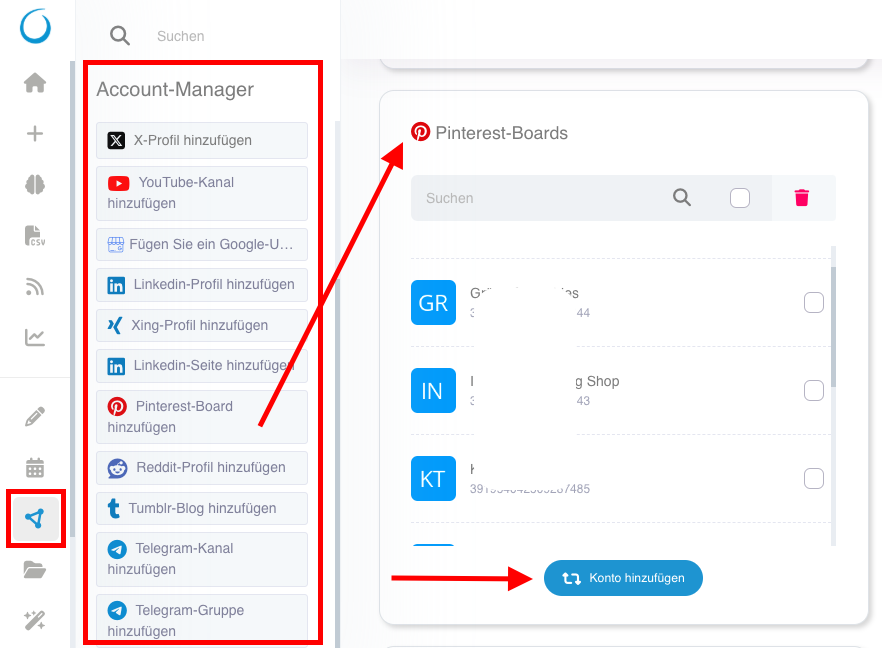
Sign in to Social Poster and navigate to the Account Manager.
Click Add Pinterest Board from the account list on the left or „Add Account“ in thePinterest boardsField right.
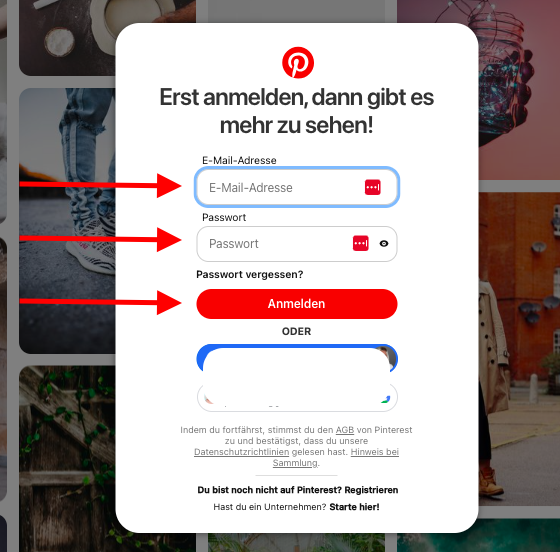
You will be redirected to the Pinterest authentication page.Log in with your Pinterest accountIf you haven’t done that yet.
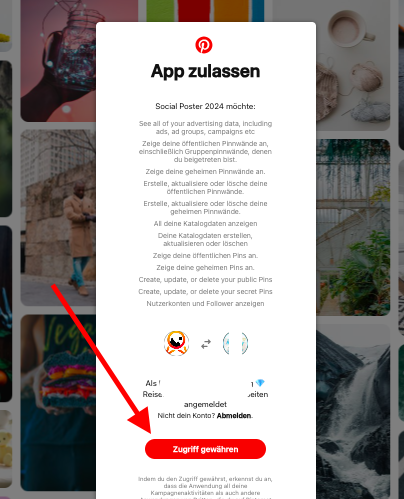
Pinterest shows you oneAuthorization request.Confirm all necessary permissions so that Social Poster can publish pins for you.
Choose all of yoursPinterest boards (Boards)where you want to publish content.
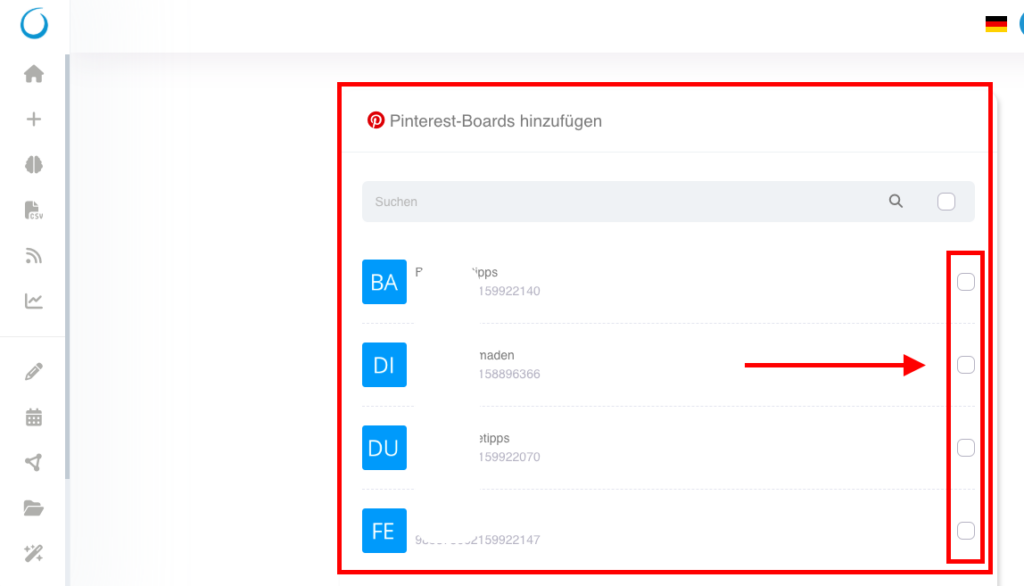
„Click onAdd profileThe connection is now established!
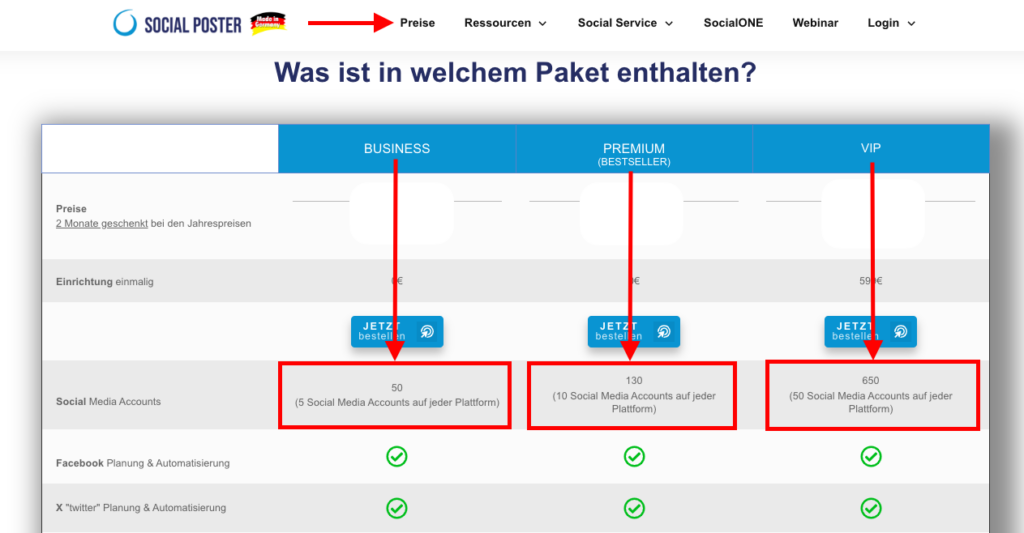
Note:TheNumber of Pinterest boards,which can be connected to social posters depends on the chosenSocial poster packageoff. More about this on ourwebsite.(See screenshot below)
4. Possible problems & solutions
❌Error message: Pinterest account not found
➡Solution:Make sure you allnecessary permissionshave rights.
❌Pins are not released
➡Solution:Check if your Pinterest account is stillConnectedIt is and whether youAPI access rightshave correctly granted. Check under„Schedules“ & „Unpublished posts,“Your Pinterest pins because of exceeding theCharacter boundaryDid not go out.
❌Connection is regularly disconnected
➡Solution:Pinterest demands oneAgain confirmationafter a certain time. Log in again in to social posters and reconnect.
❌Error message: Permissions missing
➡Solution:Check if you all requestedAuthorizations grantedand your account is correctly set up as a business account.
5. Special hints
Pinterest only allows posting images via social posters Videos cannot be published automatically.
The maximum character length for a pin description is 500 characters.
Hashtags are relevant on Pinterestand help to make pins more findable in the search.
Interactions such as comments, likes or saving pinsOn other bulletin boards cannot be automated.
Regular connection renewal requiredPinterest uses security measures for third-party tools.
Tip:If you manage multiple Pinterest accounts, you can also connect them to social posters and manage them centrally in the dashboard.