Teams (from PREMUIM)
The Teams section in social posters is specifically designed to facilitate collaboration between team members. With clearly defined roles and access rights, teams can work more efficiently and better manage social media campaigns.
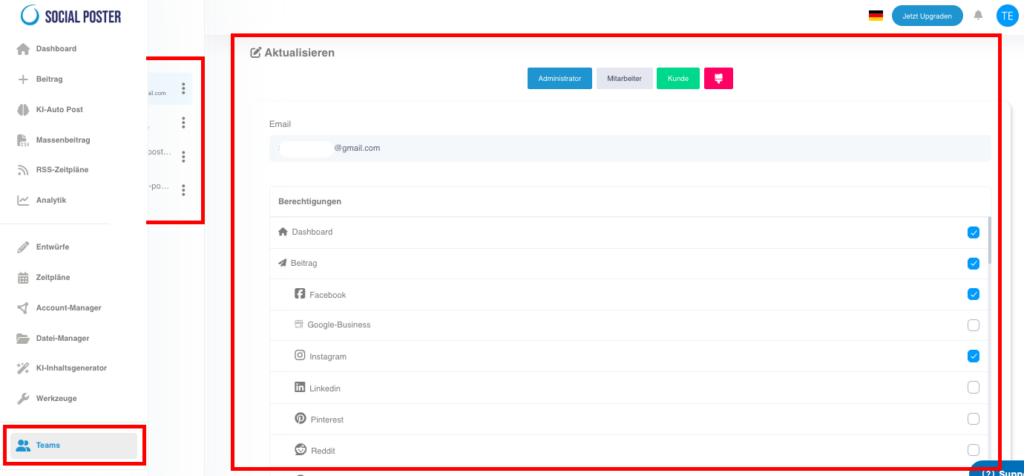
13.1 What is the teams area?
- Definition:A feature that allows you to invite team members to roll them
assign and control their access to specific areas of the platform. - Main benefits:
- Cooperation:Facilitates working on joint projects.
- Transparency:Defined roles ensure clear responsibilities.
- Safety:Limit access to sensitive areas to prevent abuse.
13.2 Functions of the team area
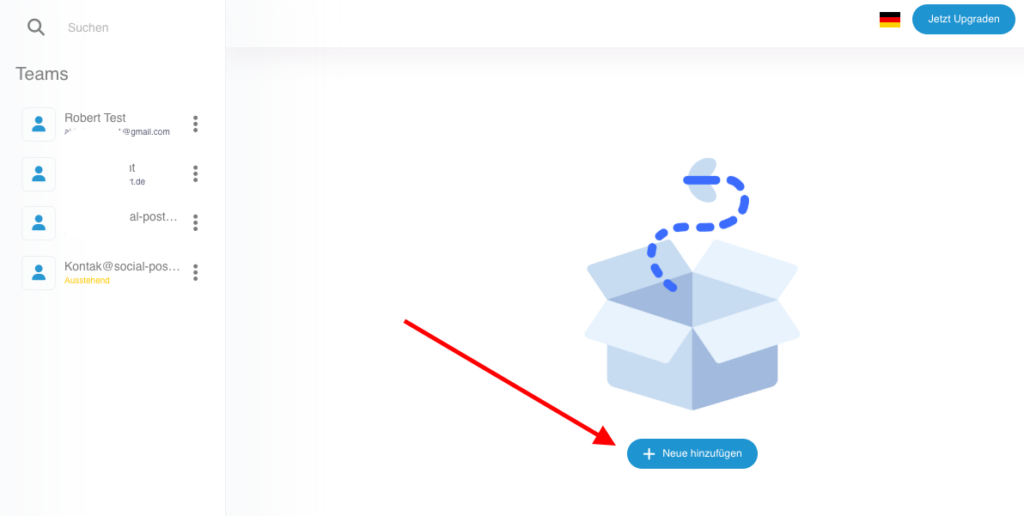
A. Invite team members
- Description:Invite new members via email and add them to your social poster team.
- Functions:
- Invitation by email.
- Overview of all invited members with their current status.
- Benefits:Allows easy and fast integration of new team members.
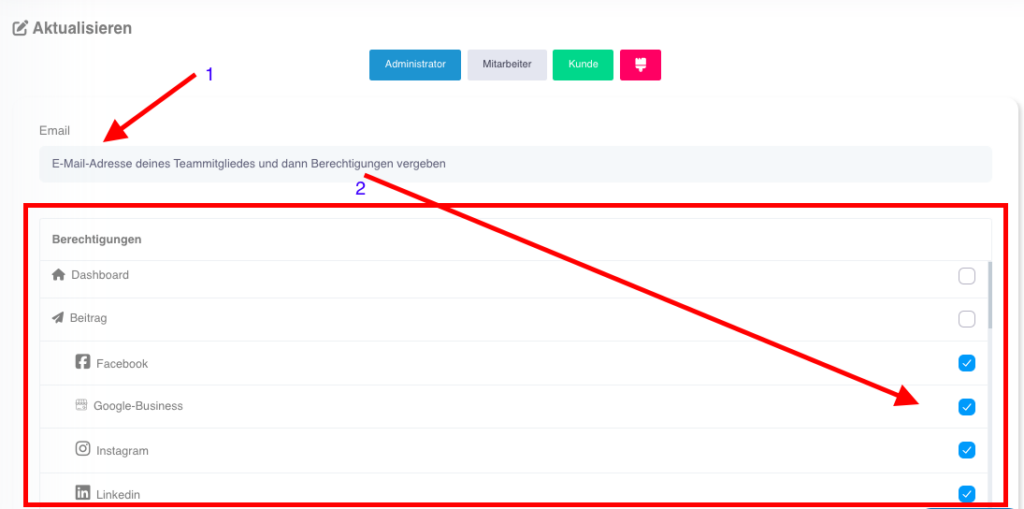
B. Roles and permissions
- Description:Assign specific roles to team members to gain their access rights
to define. - Available roles:
- Administrator:Full control over all functions and settings.
- Editor:Can create, edit and publish content.
- Viewer:Has read access only to view content or statistics.
- Rights granting:Share exactly the rights and menu items that your team member is allowed to edit.
- Benefits:Ensures clear responsibilities and protects sensitive data.
C. Assign projects
- Description:Limit team member access to specific projects
or customer accounts. - Functions:
- Assignment of specific platforms, groups or campaigns.
- Overview of assigned projects for each team member.
- Benefits:Ensures team members only have access to relevant areas.
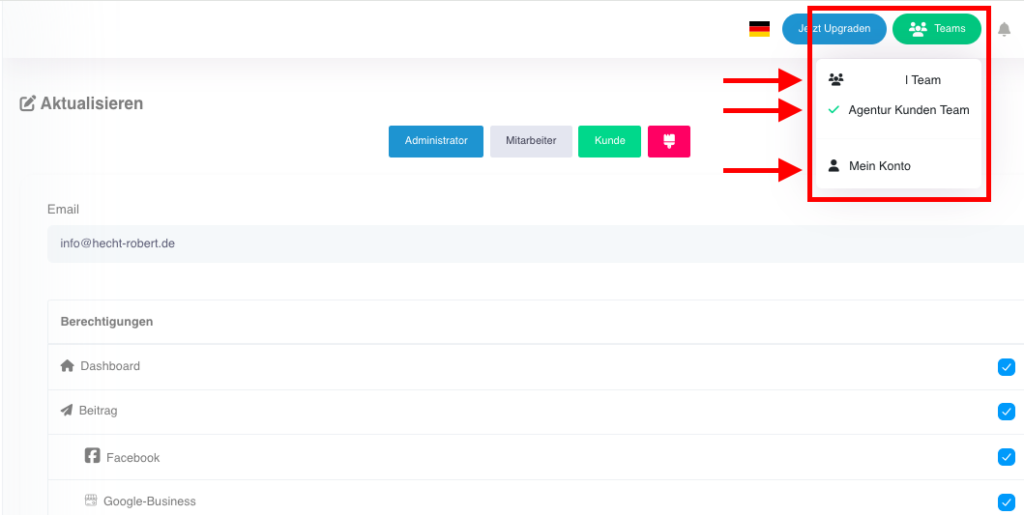
13.4 Common use cases
- Agency workflows:
- An agency can create specific project groups for each client and give team members access to them.
- Release process:
- Posts can be created by an editor and reviewed by an administrator before going live.
- Security management:
- Limit temporary employees or freelancers“ access to specific projects or features.
13.5 Benefits of teams
- Efficiency:Facilitates collaboration by allowing team members to work specifically on tasks.
- Control:Prevents errors and misuse through clearly defined roles and permissions.
- Flexibility:Adapts to the needs of teams of all sizes.
13.6 Tips for optimal use
- Clearly define roles:Assign each team member a role that
Tasks and responsibilities. - Organizing projects:Use the assignment function to get an overview of
Keep customers or campaigns. - Regular review:Regularly check activity logs to
Analyze efficiency and errors. - Temporary access:Only grant temporary access to freelancers or external employees.

13.7 Frequently asked questions (FAQ)
- How many team members can I add?
- The maximum number depends on your social poster plan.
- Can I change the roles of a team member?
- Yes, roles can be customized at any time.
- Can I restrict access to certain accounts or platforms?
- Yes, the assignment function allows targeted access restriction.
- What happens when a team member leaves the company?
- You can remove the member from the team, causing all accesses immediately
be deactivated.
- You can remove the member from the team, causing all accesses immediately
13.8 Practical examples
- Content-Team:An editor creates the content while an administrator creates it
Review and release. - An agency:Assigns and tracks specific customer projects and tracks
their progress. - A start-up:Use the Teams section to give freelancers access only for specific campaigns.
13.9 Benefits for companies
- Agencies:Manage large teams with multiple customers efficiently.
- E-commerce:Coordinate internal and external staff for marketing campaigns.
- Content Creator:Work with assistants and consultants without the
Lose control of your accounts.
The Teams section in social posters is an indispensable tool to optimize collaboration in your team. With clearly defined roles, specific access restrictions, and a clear protocol for activities, you can ensure that projects are handled efficiently and securely.